Analisar diário de bordo
 |
 |
 |
 |
 |
Pré-requisitos
- Acesso ao menu Gestão > Diário de bordo (SP026).
- Coleta executada.
- Diário de bordo registrado para a coleta.
Apresentação
Para analisar as causas que levaram à geração de um evento em um diário de bordo, o sistema disponibiliza uma série de ferramentas. Confira, a seguir, cada uma das opções e para que são utilizadas:
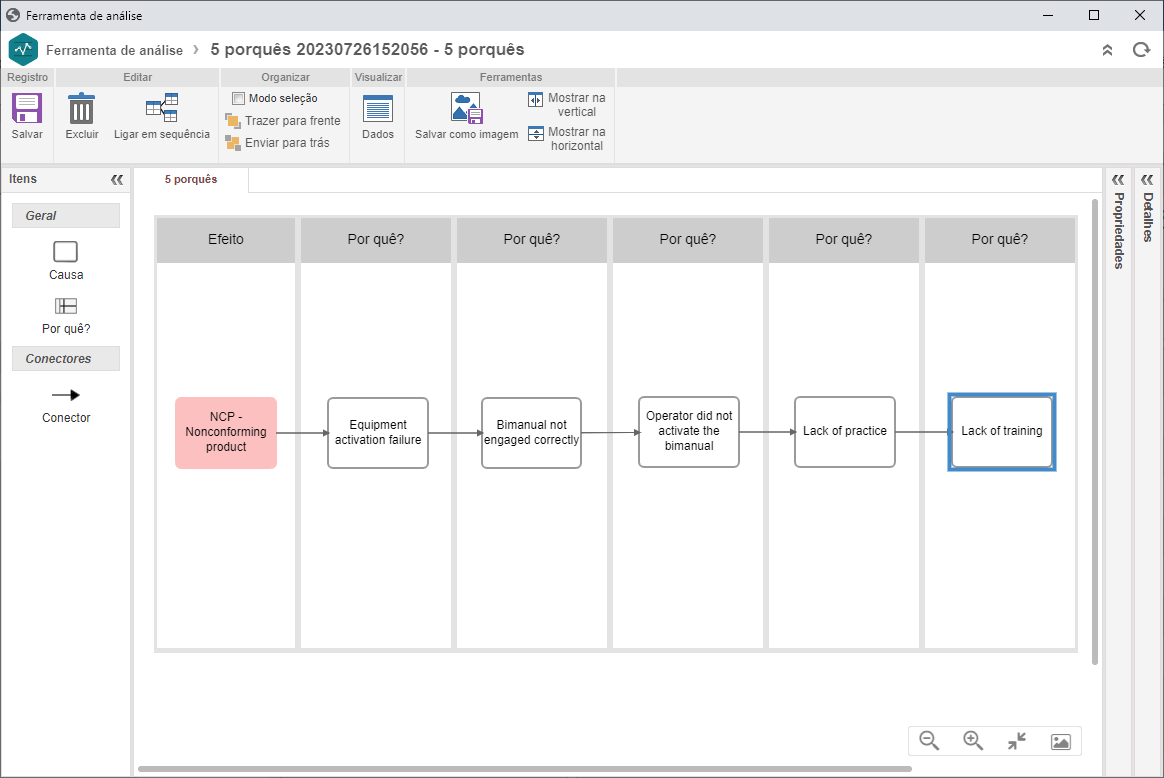
5 Porquês
Esta técnica permite registrar como se chegou a uma causa raiz a partir de perguntas sucessivas.
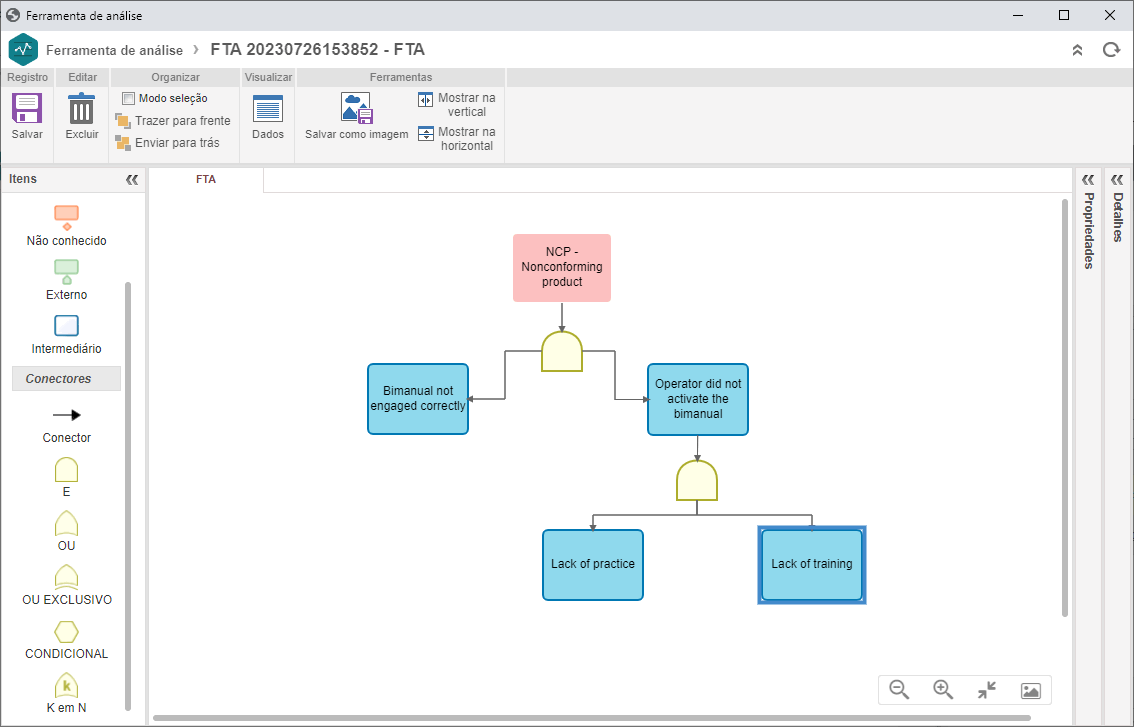
FTA (Fault Tree Analysis) ou Diagrama da Árvore de Falhas
Esta ferramenta envolve um processo lógico dedutivo, buscando todas as combinações de causas raiz que podem levar à ocorrência do evento indesejado.
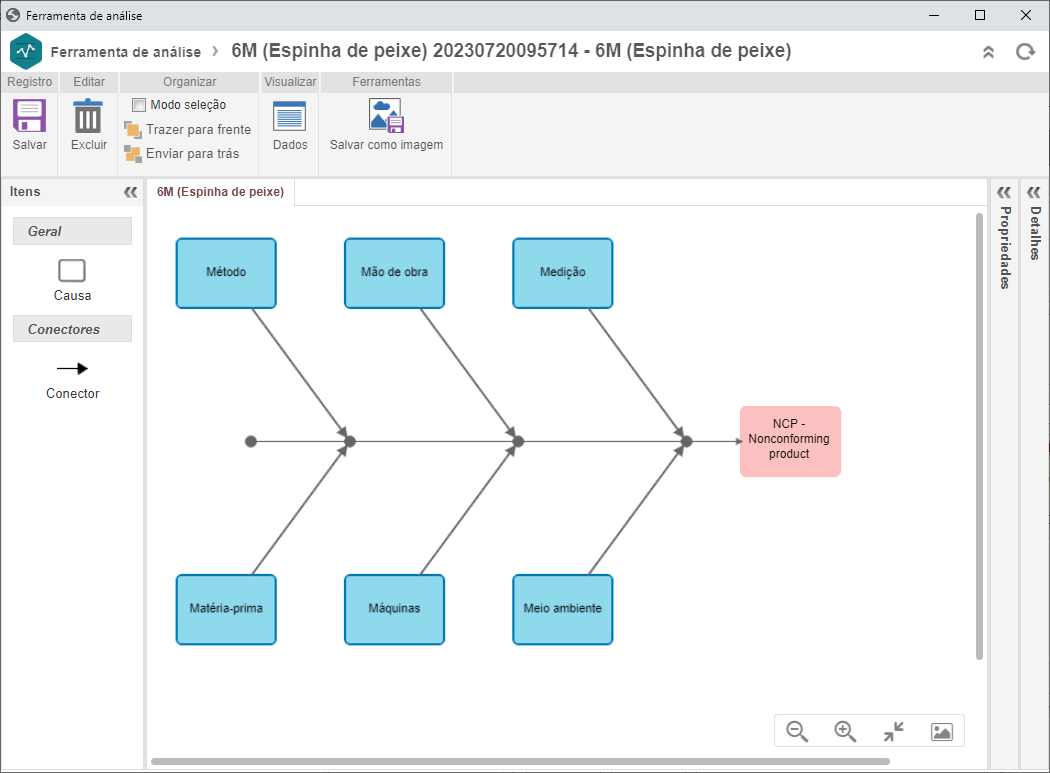
Espinha de Peixe ou Diagrama de Ishikawa
Esta ferramenta, também conhecida como Diagrama de causa e efeito, parte de um "problema" (considerado o efeito do diagrama) e de todas as influências dele (consideradas as causas do diagrama). O efeito e as causas identificadas são dispostos no formato de uma espinha de peixe, facilitando a visualização, a fim de analisar a relação entre todas as causas e como o efeito (problema) pode ser resolvido.
Confira o passo a passo para realizar a análise de um diário de bordo:
Analisar o diário de bordo
1. Acesse o menu Gestão > Diário de bordo (SP026).
2. Expanda o botão Mais e clique na opção 3 quadrantes.
3. Selecione uma coleta e, no 3º quadrante, clique no botão  .
.
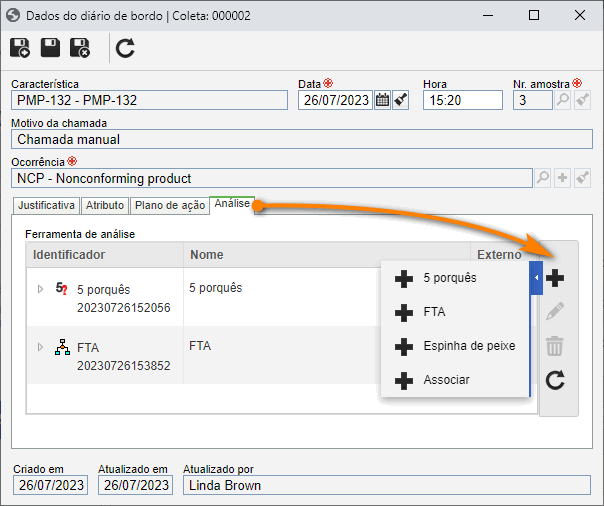
4. Na tela de dados do diário de bordo, acesse a aba Análise.
5. Expanda o botão  e selecione a ferramenta desejada.
6. Após configurar a ferramenta, clique no botão  .
.
A partir da versão 2.1.09, o SoftExpert CEP registra a hora da amostra da coleta e do diário de bordo com base no navegador do usuário, não mais no horário do servidor.
Conclusão
Após analisar as causas que levaram a um evento registrado no diário de bordo, é possível realizar um planejamento para encontrar soluções adequadas facilmente. Dessa forma, completa-se o ciclo do diário de bordo da coleta.